OnStream Firestick: Install and Stream on Fire TV in 2026
Enjoy your favorite movies, TV shows, and live channels on a bigger screen. Make sure you have the rights to stream any content available in your region through this app.
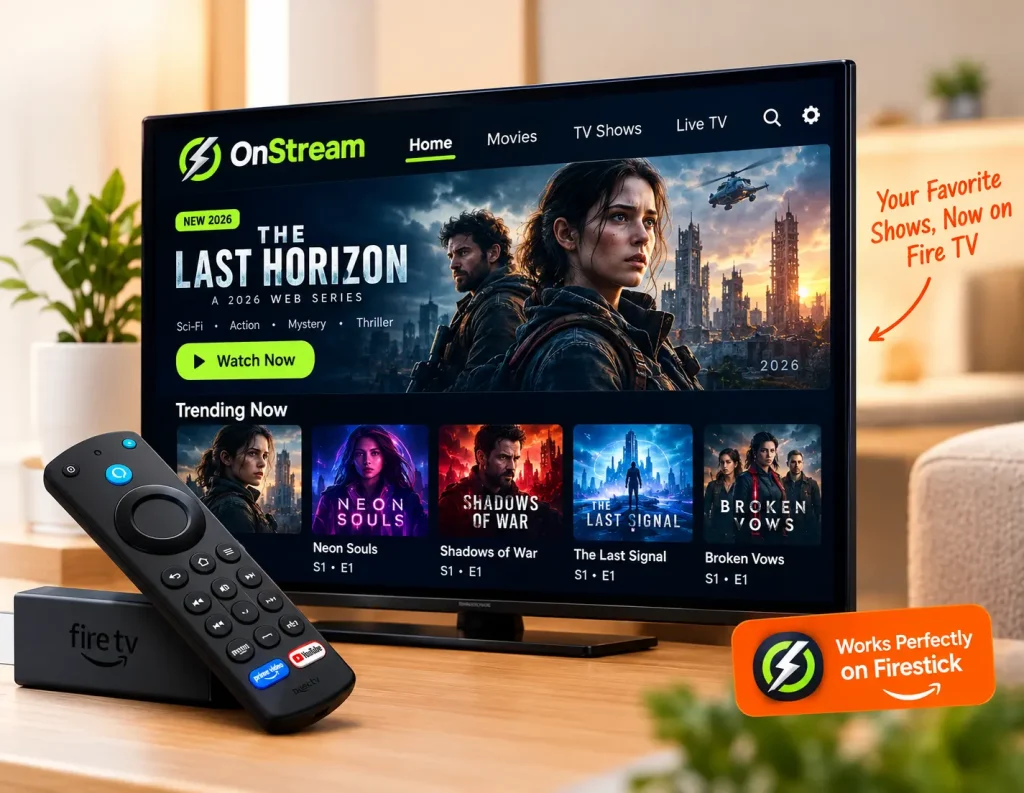
OnStream isn’t on the Amazon Appstore, so your Fire TV Stick won’t find it through the normal search bar no matter how you spell it. That trips up a lot of first-time cord-cutters. The fix is sideloading, a built-in, Amazon-supported way to install apps that live outside the Appstore, and once you’ve done it, OnStream runs on Fire TV Stick exactly the way it runs on your phone.
Quick Answer: OnStream Firestick installation requires sideloading, since the app isn’t listed on the Amazon Appstore. Install the free Downloader app by AFTVnews from the Appstore, enable Install Unknown Apps for Downloader in Settings, then enter the OnStream APK URL directly into Downloader to install it. This works on Fire OS-based devices, the Fire TV Stick 4K, 4K Max, and Fire TV Cube, but does not work on the newer Fire TV Stick 4K Select, which runs Vega OS and blocks APK sideloading entirely.
Is Your Firestick Compatible With OnStream?
Most Fire TV devices support sideloading; one recent model, notably, does not.
Before installing anything, it’s worth confirming your specific device can sideload apps at all. Amazon’s newest Fire TV Stick 4K Select ships on Vega OS instead of the older Fire OS, and Vega OS does not support APK sideloading in any form: no Downloader, no ADB, nothing. If that’s the stick you own, OnStream Firestick simply won’t install through this method, full stop.
|
Device |
Operating System |
Sideloading Supported |
|---|---|---|
|
Fire TV Stick 4K Max |
Fire OS |
Yes |
|
Fire TV Stick 4K |
Fire OS |
Yes |
|
Fire TV Cube |
Fire OS |
Yes |
|
Fire TV Stick (older / 3rd Gen) |
Fire OS |
Yes |
|
Fire TV Stick (basic/HD) 2026 |
Vega OS |
No, sideloading blocked |
|
Fire TV Stick 4K Select |
Vega OS |
No, sideloading blocked |
If you’re not sure which one you have, check Settings > My Fire TV > About on the device itself; the model name is listed right there.
How to Install OnStream Firestick Step by Step
Six steps using the Downloader app, the standard and Amazon-supported sideloading method.
Step 1: Unlock Developer Options
Go to Settings > My Fire TV > About, then click on your device name (for example, “Fire TV Stick 4K Max”) seven times in quick succession. A message will confirm Developer Options has been unlocked.
Step 2: Enable Apps from Unknown Sources
Back out to Settings > My Fire TV > Developer Options, and turn on Apps from Unknown Sources. On newer Fire OS 8 and 9 builds, this permission is granted per app rather than as one global switch; keep that in mind for Step 4.
Step 3: Install the Downloader App
From the Fire TV home screen, open Find, search for “Downloader,” and install the version published by AFTVnews. It’s free and comes straight from the Amazon Appstore, so this part doesn’t require sideloading at all.
Step 4: Grant Downloader Install Permission
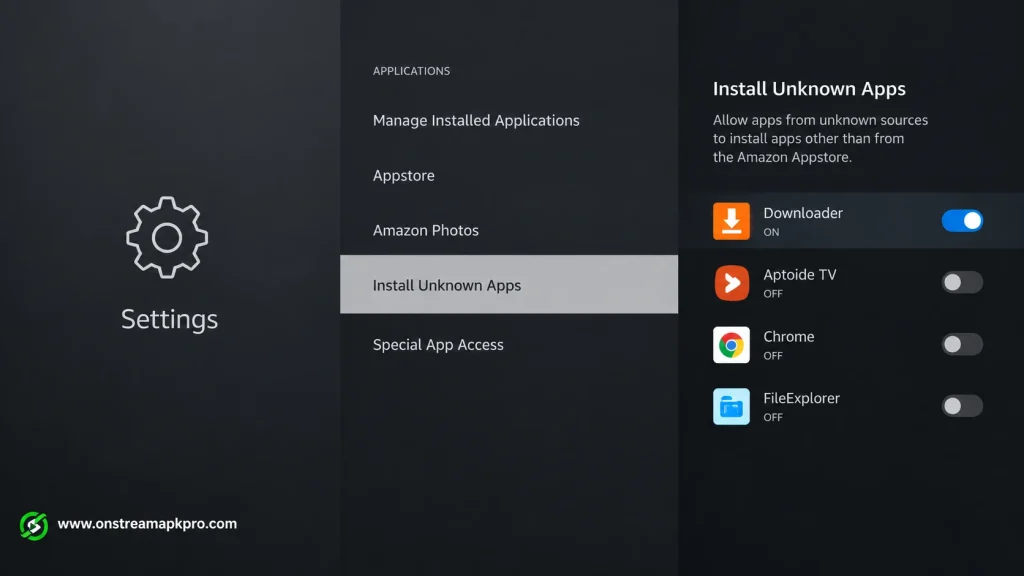
Go to Settings > Applications > Install Unknown Apps, find Downloader in the list, and toggle it on. Skipping this step is the single most common reason a sideload stalls. Downloader will fetch the file but refuse to install it.
Step 5: Enter the OnStream APK URL in Downloader
Open Downloader, select the URL field, and type in the direct link to the OnStream APK from our homepage. Press Go, and the file downloads automatically.
Step 6: Install and Launch
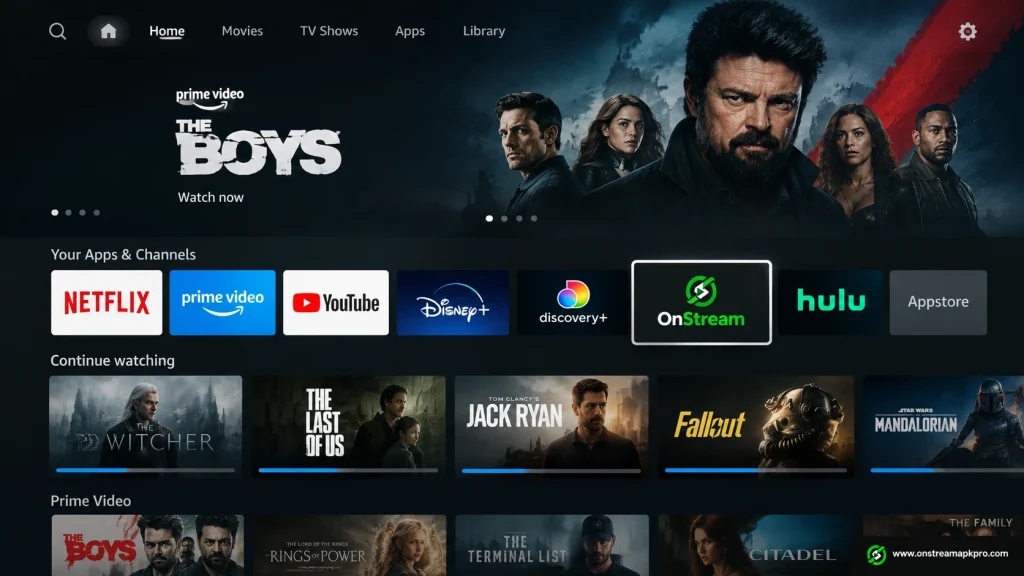
When the download finishes, tap Install on the prompt that appears. Once installation completes, OnStream Firestick shows up in your Apps & Channels row on the Fire TV home screen, ready to open.
A quick safety note: sideloading itself is a legitimate, Amazon-supported Android feature; it isn’t a hack or a workaround that voids anything. The only real risk sits with where you get the APK file from, so stick to a source you trust rather than a random link you found in a forum comment.
Getting the Most Out of OnStream Firestick on the Big Screen
A few Firestick-specific habits make the experience noticeably smoother than just installing and hoping.
- Use the Fire TV remote’s directional pad to browse rows. OnStream’s interface responds to standard D-pad navigation without needing a mouse-style pointer.
- If a stream buffers, back out and try a different server from the same title’s detail screen; this is the same multi-server switching that works on Android and PC.
- Pair a Bluetooth keyboard if you’re searching by title often; typing a movie name with the on-screen remote keyboard gets tedious fast.
- Keep at least 1 GB of free storage on the device. Fire TV Sticks with limited internal storage can slow down noticeably once a few apps and cached thumbnails build up.
- Restart the Fire TV Stick every week or two if you use it daily; this clears background memory and keeps playback starting quickly.
Fixing Common OnStream Firestick Problems
Most sideloading failures trace back to a permission that wasn’t granted per-app, not a broken APK.
Downloader Downloads the File but Won’t Install It
This is almost always the per-app permission from Step 4. Go back to Settings > Applications > Install Unknown Apps and confirm that Downloader specifically is toggled on; it’s easy to enable the general Developer Option and miss this second, app-specific step.
Can’t Find Developer Options at All
Developer Options only appears after you’ve clicked your device name seven times under Settings > My Fire TV > About, as described in Step 1. If you’ve already done this once, the menu is there; you don’t need to repeat it.
OnStream Firestick Installs but Won’t Open
Uninstall and reinstall following the same six steps. A partial or interrupted install is more common on Fire TV than on phones, since remote-based typing occasionally causes a mistyped URL that downloads an incomplete file.
Sideloading Won’t Work at All on My Device
Check the compatibility table above. If your Fire TV Stick 4K Select runs Vega OS, sideloading isn’t available on that hardware regardless of what steps you follow. This is a platform limitation, not something you’re doing wrong.
I searched the Amazon Appstore for OnStream and found nothing.
That’s expected; OnStream isn’t on the App Store at all, which is why this guide uses sideloading through Downloader instead of a normal app search.
Typing the APK URL with the remote gave me a “file not found” error.
Remote-based typing on the on-screen keyboard is easy to mistype. Double-check the URL character by character, or use the Fire TV remote app on your phone for a full keyboard, then re-enter it in Downloader.
Conclusion
Getting OnStream running on Firestick comes down to one extra step that phones don’t need: sideloading through Downloader, since Amazon’s own Appstore doesn’t list it. Once that’s done, the app behaves exactly the way it does on Android or through our PC guide: same library, same multi-server switching, same no-account setup, just on a bigger screen.
Already have OnStream on your phone and want the same setup on a laptop? Our OnStream for PC guide covers the emulator route in full. Watching on an iPhone instead? Check our OnStream iOS guide for that install path.
Frequently Asked Questions
Can I install OnStream directly from the Amazon Appstore?
No. OnStream isn’t listed on the Amazon Appstore, so it has to be sideloaded using the Downloader app instead. This is a standard, Amazon-supported process, not a workaround.
Does OnStream work on the Fire TV Stick 4K Select?
No. The Fire TV Stick 4K Select runs Vega OS, which doesn’t support APK sideloading at all. OnStream will install fine on Fire OS devices like the Fire TV Stick 4K, 4K Max, and Fire TV Cube.
Is sideloading OnStream on Firestick safe?
Sideloading itself is a built-in Fire TV feature that Amazon officially supports through Developer Options. The safety consideration is entirely about where you download the APK file from; use a trusted source rather than an unverified link.
Why does Downloader say it can’t install the OnStream APK?
On Fire OS 8 and 9, Install Unknown Apps permission has to be granted specifically to Downloader under Settings > Applications, separately from the general Developer Options toggle. This per-app permission is the most common thing people miss.
Can I use OnStream on Firestick and my phone with the same account?
OnStream doesn’t require an account on any platform, so there’s nothing to sync between devices. Each install works independently, and your download history stays local to whichever device you’re using.
Do I need to redo this every time OnStream updates?
No. Once OnStream is installed, it can often update itself the same way it does on Android, depending on how the app handles updates. If a new version stops working, redownload the current APK link in Downloader and reinstall it using the same steps.
Can I sideload OnStream on a Fire TV Stick 4K Select using a workaround?
Not through Downloader or any consumer-facing method. Vega OS blocks Apps from Unknown Sources at the system level for regular users, unlike Fire OS. Unless Amazon changes this, the 4K Select isn’t a supported device for this guide.