OnStream for iOS: Enjoy Streaming on iPhone & iPad
Enjoy your favorite movies, TV shows, and entertainment on your iPhone or iPad. Simple, smooth, and designed for a better mobile streaming experience.
Free to use
Mobile Friendly
Easy Setup
iPhone & iPad
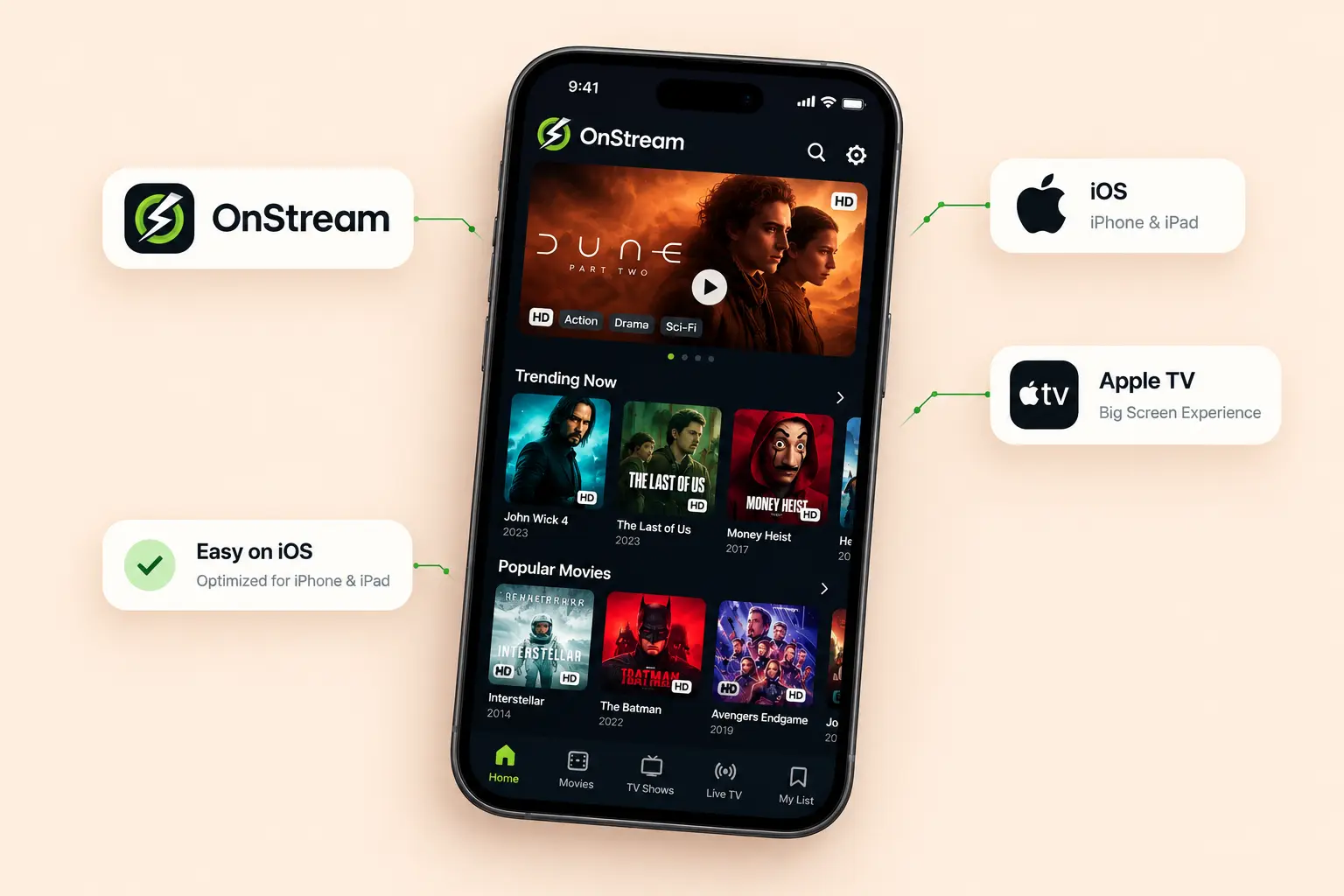
Smooth Streaming
Enjoy a clean interface and responsive playback experience.
Mobile Experience
Watch movies and TV shows comfortably on your phone.
No Complicated Setup
Follow the simple iOS guide and get started quickly.
Safe and Simple
Use trusted sources and keep your device protected.
OnStream for iOS works differently from OnStream on Android, and it’s worth understanding why before you go looking for a download button that doesn’t exist. Apple reviews every app before it reaches the App Store, and native apps go through a strict approval process. OnStream isn’t listed there, so this guide covers the browser-based method instead.
That doesn’t mean iPhone and iPad users are left out, though. OnStream is fully accessible through Safari, and once you know the two-minute setup, it behaves almost exactly like an installed app.
We tested this browser-based method on an iPhone 14 and an iPad running the latest iOS and iPadOS, checked how playback, search, and offline downloads behave compared to the Android app, and put together the exact steps below.
Quick Answer
OnStream for iOS isn’t a downloadable App Store app; Apple doesn’t allow apps that stream unlicensed content. Instead, iPhone and iPad users can access the full OnStream library for free through Safari, and add it to the home screen so it opens and feels just like a normal app.
Is There an OnStream App for iOS?
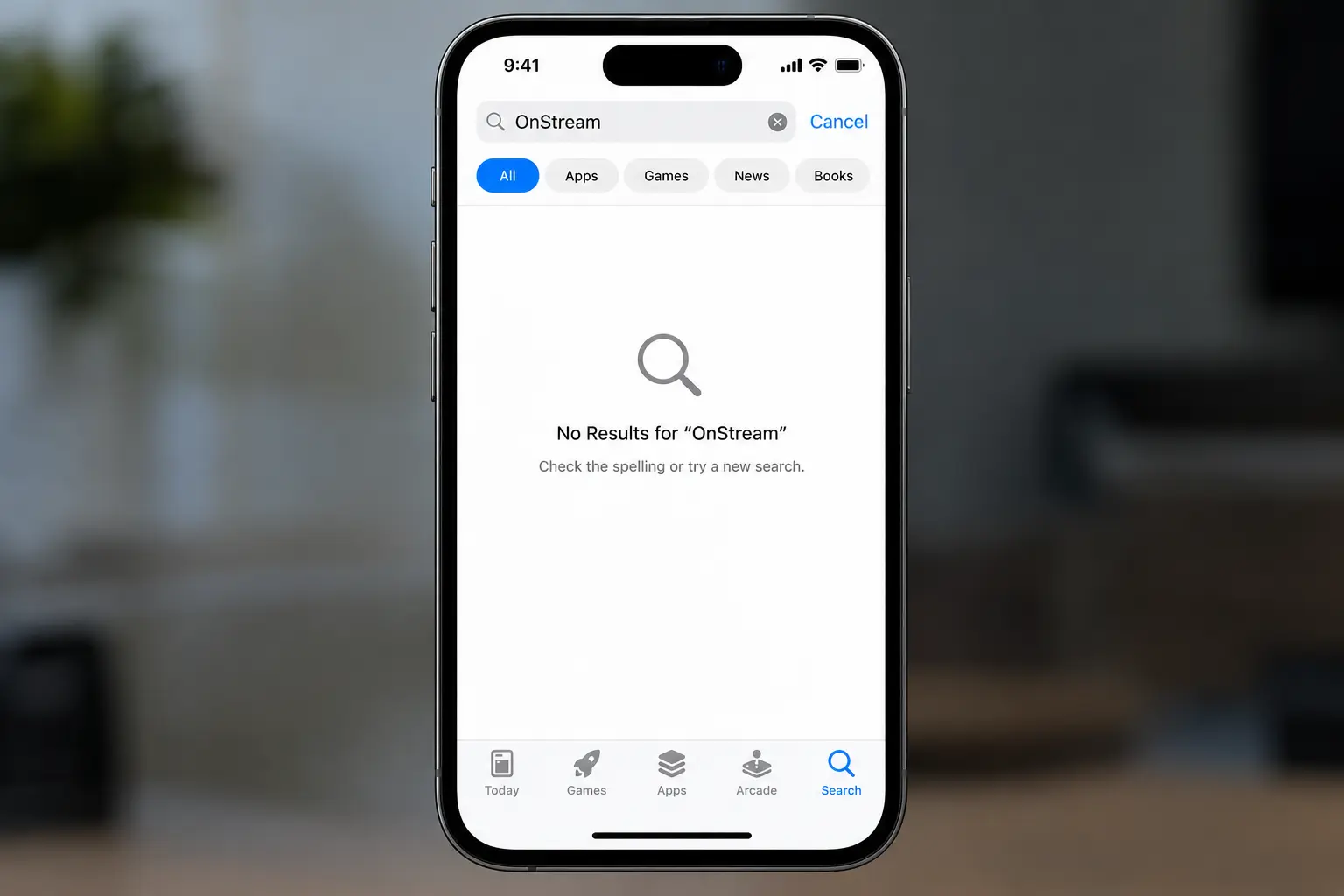
No, and it’s unlikely there ever will be one. Apple’s App Store guidelines require every app to demonstrate that its content is properly licensed. As far as we can tell, OnStream isn’t listed on the App Store, so it isn’t available there as a native app.
Android allows sideloading outside its own app store, which is how OnStream reaches Android users; iOS has no simple equivalent for a general audience in most regions, so a native install was never really on the table.
This is worth knowing simply so you don’t waste time searching the App Store for something that isn’t there, or worse, downloading an unrelated app that happens to share the name.
How to Access OnStream on iPhone and iPad
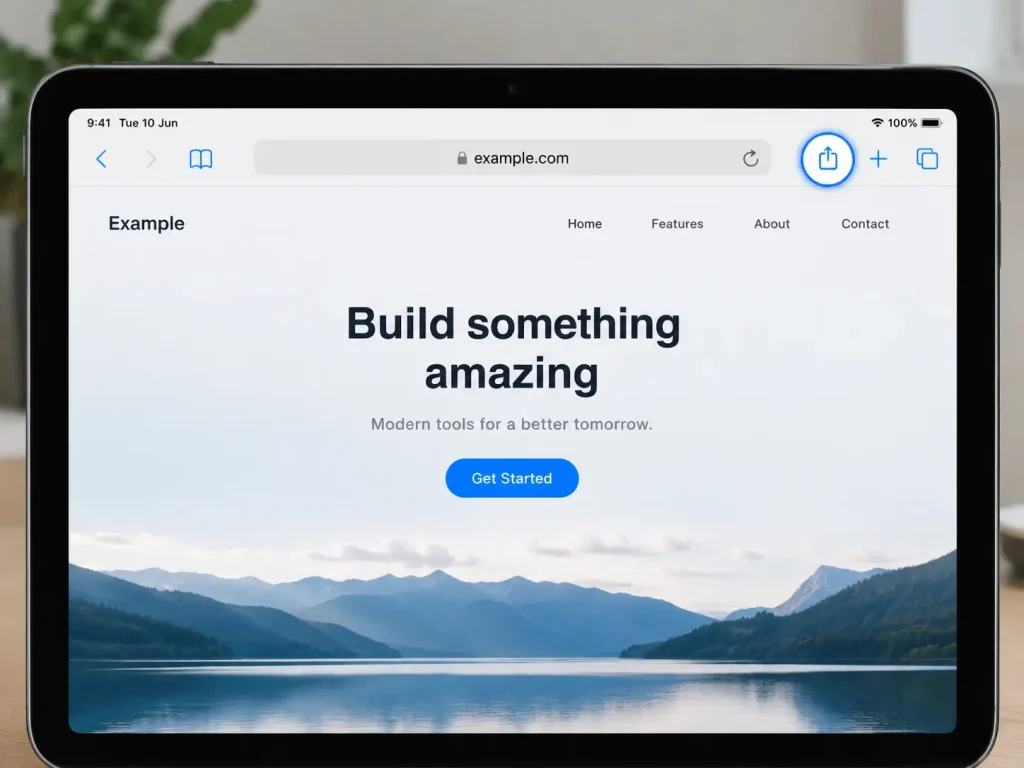
The whole process takes about two minutes, and the steps are almost the same on both devices, with one small difference in where the Share button sits.
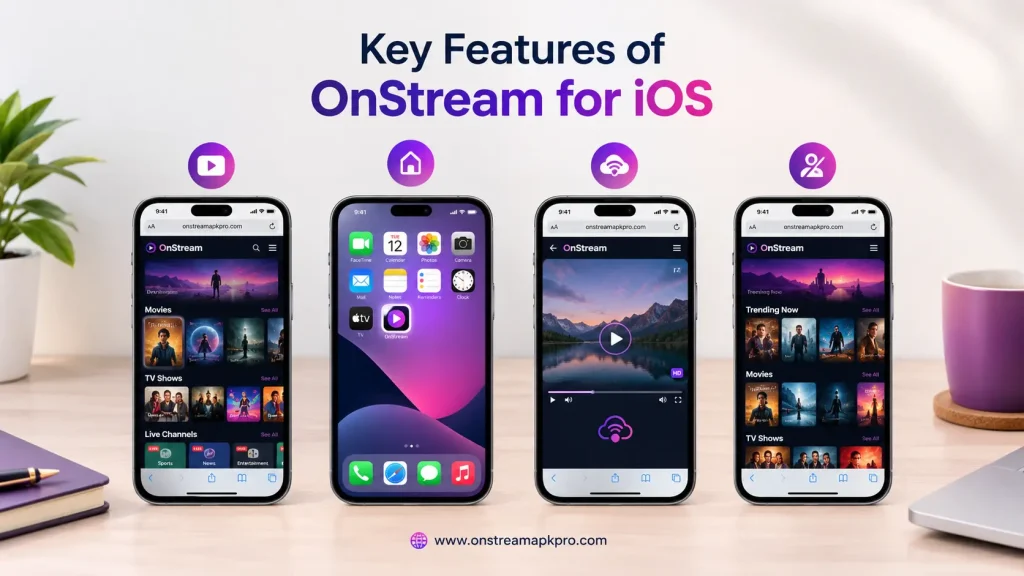
Key Features of OnStream for iOS
The browser version carries over nearly everything from the Android app, with a couple of platform-specific differences worth knowing:
Full Content Library, No Separate Version
There’s no cut-down “mobile web” version here; the same movies, TV shows, and live channels available on Android are all present in the Safari experience, updated on the same schedule.
Home Screen Shortcut, App-Like Feel
Once added to the home screen, OnStream opens in its own window without Safari’s toolbar, and its icon sits alongside your other apps the closest thing to a native install that iOS allows for this kind of app.
No Downloads for Offline Viewing
This is the one meaningful gap compared to Android: Safari doesn’t support saving video files to the device the way a native app can, so offline downloads aren’t available on iOS. Streaming still works normally with an active connection.
OnStream for iOS Works Without Signing In
Just like the Android version, no account or login screen is standing between you and the content; open the shortcut and the homepage loads directly.
Is OnStream for iOS Worth It Compared to Paid Streaming Apps?
OnStream costs nothing and needs no account, which is the main reason people look for it in the first place. It’s worth being clear about what that trade-off actually looks like next to a paid service like Netflix or Disney+.
What you get for free: A large library of movies and TV shows, no subscription fee, and no sign-up wall standing between you and a title. For someone who wants to watch something occasionally without committing to a monthly bill, that’s real value.
What you give up: Offline downloads aren’t available on iOS, as covered above. Streaming quality and server reliability can vary, since OnStream isn’t a licensed service with dedicated infrastructure the way Netflix or Prime Video is. There’s also no customer support line to call if something breaks, and content availability can change without notice.
Who this makes sense for: Casual viewers who mainly want something to watch on a phone or iPad screen, and who don’t mind occasional buffering or a title disappearing. If you watch daily, need offline downloads for travel or commutes, or want guaranteed reliability, a paid subscription will serve you better.
OnStream for iOS vs. Android
|
Feature |
iOS (Safari) |
Android (APK) |
|---|---|---|
|
Installation |
Add to Home Screen |
|
|
Offline downloads |
Not available |
SD / HD / Full HD |
|
Sign-in required |
No |
No |
|
Feels like a native app |
Mostly, no address bar |
Fully native |
|
Content library |
Same |
Same |
OnStream on iPhone vs iPad
The method is the same on both devices, but the screen size and the Share button position make the experience feel different.
|
Feature |
iPhone |
iPad |
|---|---|---|
|
Share button |
Bottom menu bar in Safari |
Top menu bar in Safari |
|
Setup steps |
Same as above |
Same as above |
|
Screen size |
Compact, easy to hold |
Larger picture, better for longer viewing |
|
Orientation |
Easy in landscape |
Better in landscape |
|
Sound and controls |
Easy to control |
Easy to control |
Is OnStream Safe to Use on iOS?
There’s indeed no APK to scan on an iPhone, and the shortcut itself is just a link on your Home Screen. The risk moves to the website, though. Fake copies of streaming sites are common, and they may show scam ads, fake update warnings, or requests for personal details.
Before you add anything to your Home Screen, check that the address in Safari is the one you meant to visit. Decline notification requests you don’t want, avoid entering personal or payment details, and keep iOS up to date.
Notifications and Permissions: What to Say No To
Some websites ask for permission to send you notifications. If OnStream or any lookalike site asks, tap Don’t Allow unless you actually want them. Never enter a password, card number, or personal details on a streaming site. If you’re unsure about a link, the FTC’s guide on how to recognize and avoid phishing scams is a good refresher.
Common Problems and Fixes for OnStream for iOS
Issues
“Add to Home Screen” option is missing.
The shortcut opens Safari instead of a full-screen app.
Video won’t play.
The site looks different from the Android app.
The video keeps buffering.
The icon disappeared after an update.
I can’t find “Edit Actions” to add the missing option.
Sloution
Confirm you’re using Safari, not Chrome or another browser; this feature is Safari-only on iOS.
Delete the shortcut and add it again from Safari, and check which browser is set as your default. This can also happen if the site isn’t set up to open full screen.
Switch servers inside the player; this is the same fix that resolves most playback issues on Android.
Expected the layout to adapt to a browser window. The content library itself is identical.
Switch to a stronger Wi-Fi connection, close other apps, and check that Low Data Mode is off.
Add the shortcut again from Safari.
Scroll to the very bottom of the Safari share sheet list; Edit Actions is the last item.
Frequently Asked Questions
Does OnStream work on iPad?
Yes, through the browser in the same way as on iPhone. Open the page in Safari, tap Share in the top bar, and choose Add to Home Screen.
How do I remove the OnStream shortcut?
Touch and hold the OnStream icon on your Home Screen, then tap the delete or remove option and confirm. Since nothing was installed, there’s no app data to clear beyond the shortcut itself.
Is there an OnStream app for iPhone?
No. OnStream isn’t on the App Store, so there’s nothing to download. Instead, you add a Home Screen shortcut to its website in Safari, which then opens and feels like an app.
Can I install OnStream on iPhone without the App Store?
Not as a regular app. What you can do is add its website to your Home Screen as a shortcut. It opens like an app, but nothing is installed, and features that need a real app, such as offline downloads, aren’t available.
Can I use Chrome to add OnStream to my Home Screen?
On newer iOS versions, some third-party browsers can add websites to the Home Screen, but behavior varies. Safari is the most reliable option.
Can I watch OnStream on my TV from an iPhone?
Screen mirroring from Control Center can show your phone on a compatible TV. Whether OnStream’s own player supports AirPlay depends on the site.
Can I download videos for offline viewing on iOS?
Not currently. Offline downloads are only available on the Android version of OnStream.
Final Verdict
OnStream for iOS isn’t a true native app, and it won’t be. Apple’s App Store rules make that unlikely to change. What it does offer is a genuinely close substitute: a free, no-login, home-screen shortcut that covers the same library as Android, minus offline downloads. For most people who just want to watch something on an iPhone or iPad, the two-minute Safari setup is a fair trade-off. If you want to learn more about OnStream for PC, check out our complete PC guide.
How We Tested This Guide
This guide is based on testing OnStream through Safari on an iPhone 14 and an iPad running the latest iOS and iPadOS. We checked the Add to Home Screen setup, compared the content library and playback quality against the Android app, and confirmed which features carry over and which don’t. This page is updated if Apple’s policies or OnStream’s website change in a way that affects the process.